

The connector is still new. Things may still change.
Setup
1
Add the connector
In Claude, open Einstellungen → Connectors (Settings → Connectors) and click Benutzerdefinierten hinzufügen (Add custom connector).
2
Name and address
Name: 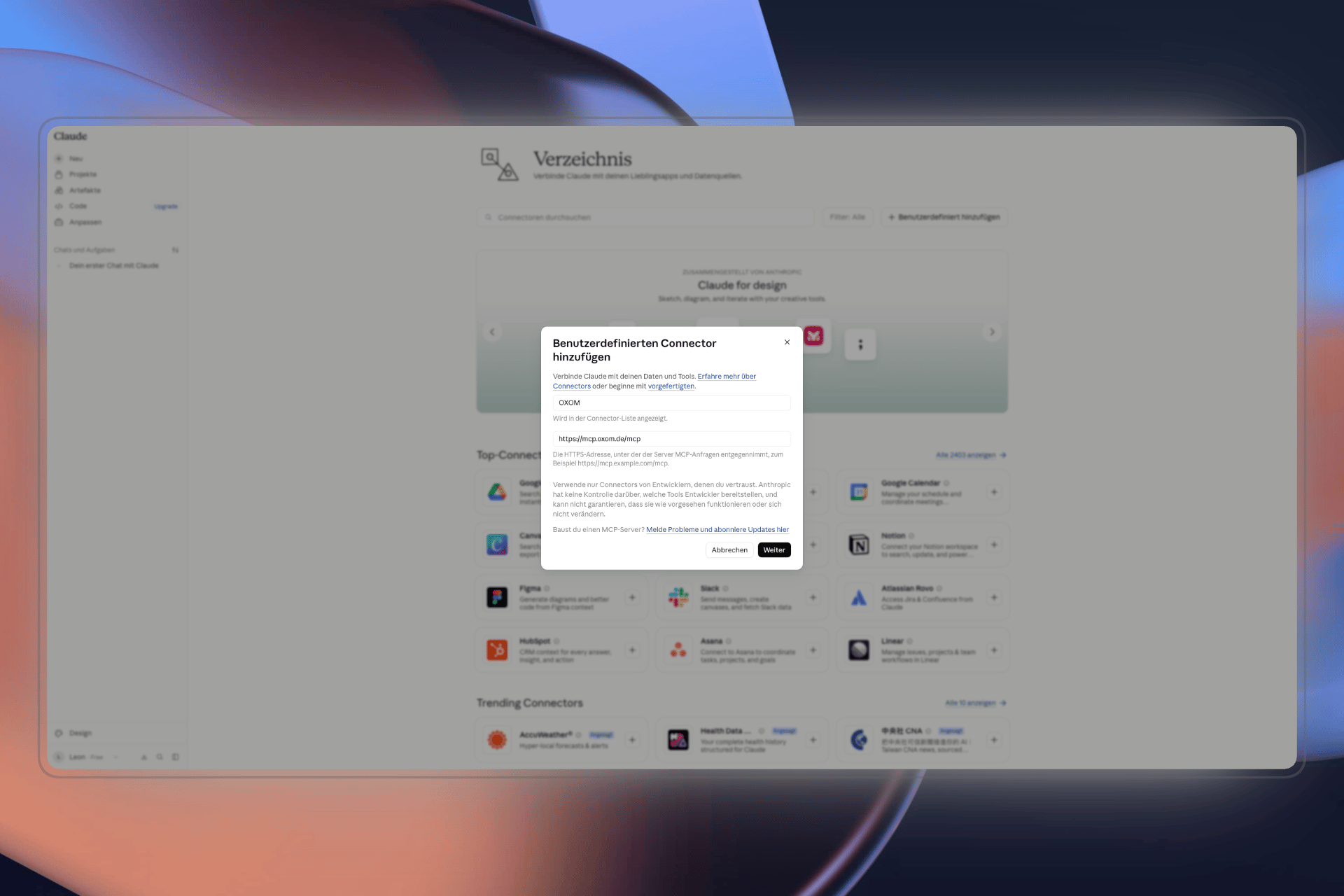
oxomRemote MCP Server URL:3
Set up sign-in
Under Authentifizierung (Authentication), choose Leave the secret field empty. Click Hinzufügen (Add).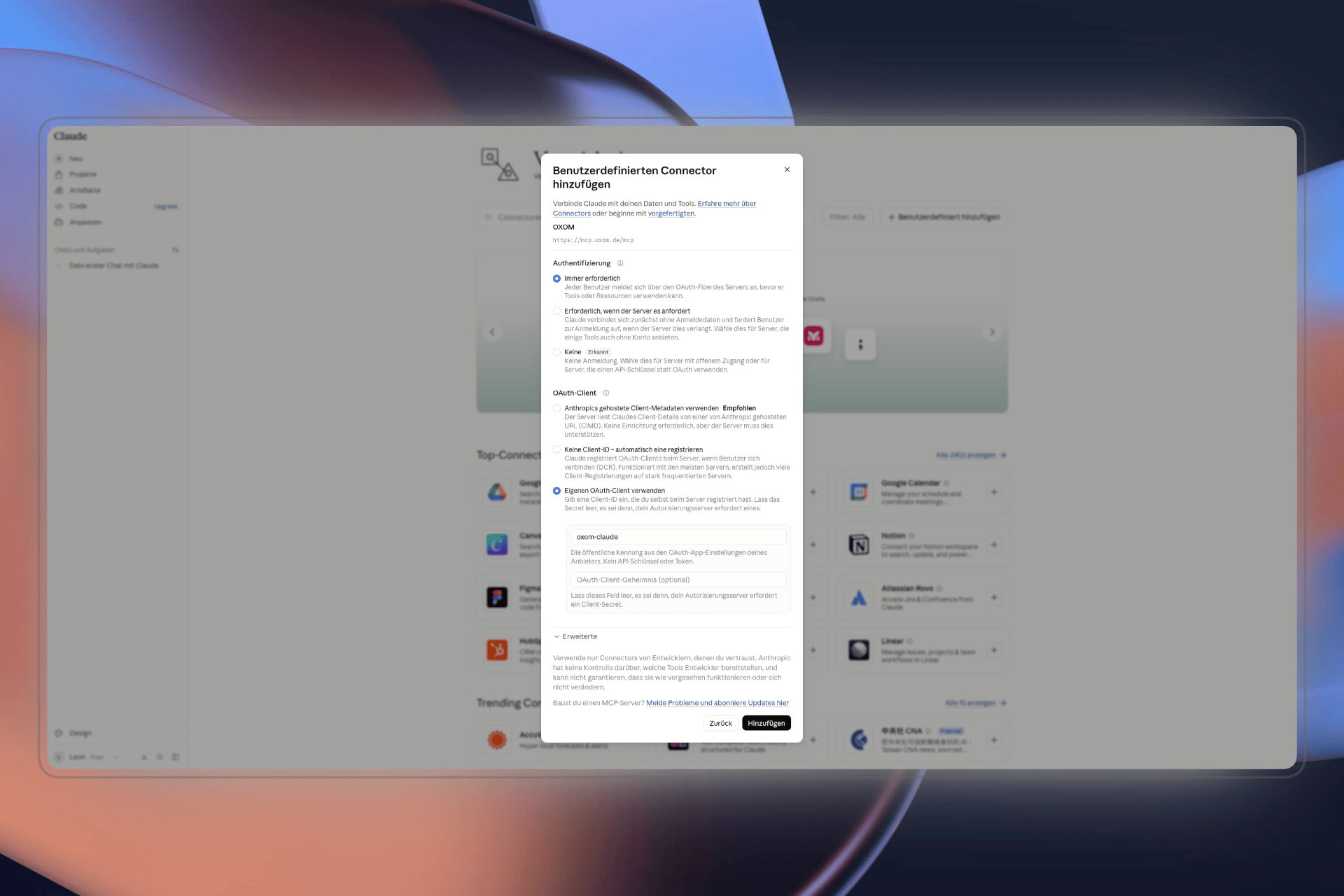
Immer erforderlich (Always required). Under OAuth-Client, choose Eigenen OAuth-Client verwenden (Use your own OAuth client), even if Claude suggests something else. As the OAuth client ID, enter:4
Connect to oxom
Click Mit Claude verbinden (Connect with Claude). You land on app.oxom.de, sign in and choose the workspace. If you’re a member of several, you can choose more than one.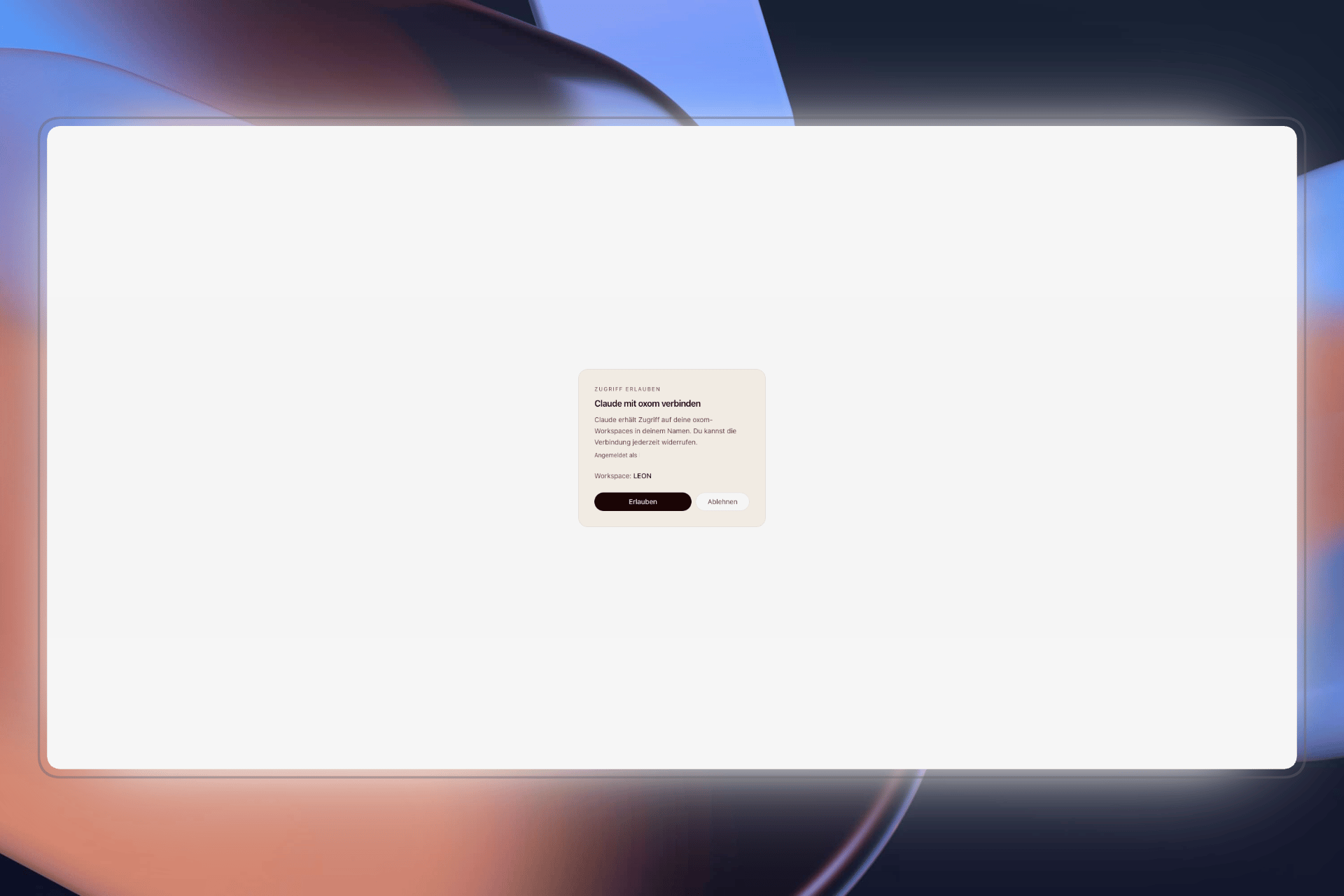
Not working?
- The address must be exactly
https://mcp.oxom.de/mcp, withoutwww.and without spaces. - Authentifizierung must really be set to
Immer erforderlich. - If nothing helps, remove the connector and add it again.